
An animation from Claude is code with a timeline. To turn it into an MP4, it is recorded frame by frame. The key is one seekable timeline so every frame renders identically. The DrillUp Academy shows exactly how, step by step.
You built an animation with a prompt in Claude, the preview looks good, and now you need a video file for Instagram, YouTube or your website. Here is how export works and what to watch out for.
How an animation becomes a video
Claude builds the animation as code that runs in the browser, driven by a timeline. A video is a series of frames: at 30 fps, 10 seconds are exactly 300 frames. On export, a tool jumps the timeline frame by frame, captures each state and assembles an MP4.
10 seconds at 30 frames per second: 300 frames, each calculated exactly.
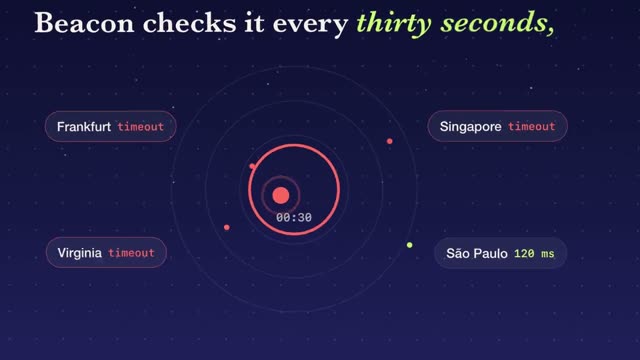
"Beacon" above was made this way: 8.6 seconds, one camera flight across a board from night to dawn, rendered frame by frame from the animation.
The key rule: one seekable timeline
The whole animation must hang on one timeline that can be paused and set to any point. Then frame 147 looks identical on every export. Animations driven by randomness or the real clock stutter or change each time. All prompts in the DrillUp library are built this way.
Which tool?
There are special tools that turn an animation into a video frame by frame. You do not operate them yourself: Claude sets the tool up and runs it for you. Which one we use and how to set it up step by step is shown in the DrillUp Academy.
Step by step
- Finish the animation in Claude.
- Set up the export: ask Claude "Set up export of this animation as MP4 at 30 fps."
- Set the resolution: 1920 × 1080, 1080 × 1920 or 1080 × 1080.
- Render. Seconds to a few minutes.
- Check the whole MP4, especially start and end.
- Add sound in your editor or the platform app.
Common pitfalls
- Stutter: something runs outside the timeline.
- Wrong font: fonts must be loaded before the first frame.
- Empty first second: start export only once everything is loaded.
- Soft edges: render at full resolution.
Back to the start: How to create motion design videos with Claude.
Frequently asked questions
Why not just record the screen?
Screen recordings stutter, drop frames and depend on your computer. Frame-by-frame rendering calculates every frame exactly, so the result is smooth and crisp.
Do I need coding skills?
No. Claude sets up the export tool and runs it for you. You only confirm when Claude asks for permission. Customers get the exact steps in the DrillUp Academy.
Which resolution should I export?
1920 × 1080 for 16:9, 1080 × 1920 for 9:16 and 1080 × 1080 for 1:1, each at 30 frames per second.